

Food blogs and recipes
On a food blog, readers ask while they cook: what can I swap for buttermilk, how do I halve this, how long per side. Yamidoo answers from the recipe the reader has open and from the rest of your blog, and hands the conversation to you when they ask for a person.
How it knows the recipe
Section titled “How it knows the recipe”Every recipe plugin prints the recipe as structured data for Google (a
schema.org Recipe). The Yamidoo widget reads it on the page the reader is on —
name, servings, prep and cook times, ingredients, steps and nutrition — and
sends it along with every question. Nothing needs to be connected or
re-entered, and edits to a recipe are picked up on the next question.
This works with WP Recipe Maker, Tasty Recipes, Recipe Card Blocks, Create by
Mediavine, Cooked and any other plugin that outputs Recipe structured data.
On pages without a recipe, the widget sends a short excerpt of the page instead.
-
Install and connect. Add the free Yamidoo plugin and click Connect in Settings → Yamidoo. See Installation. Your recipes and posts are indexed automatically.
-
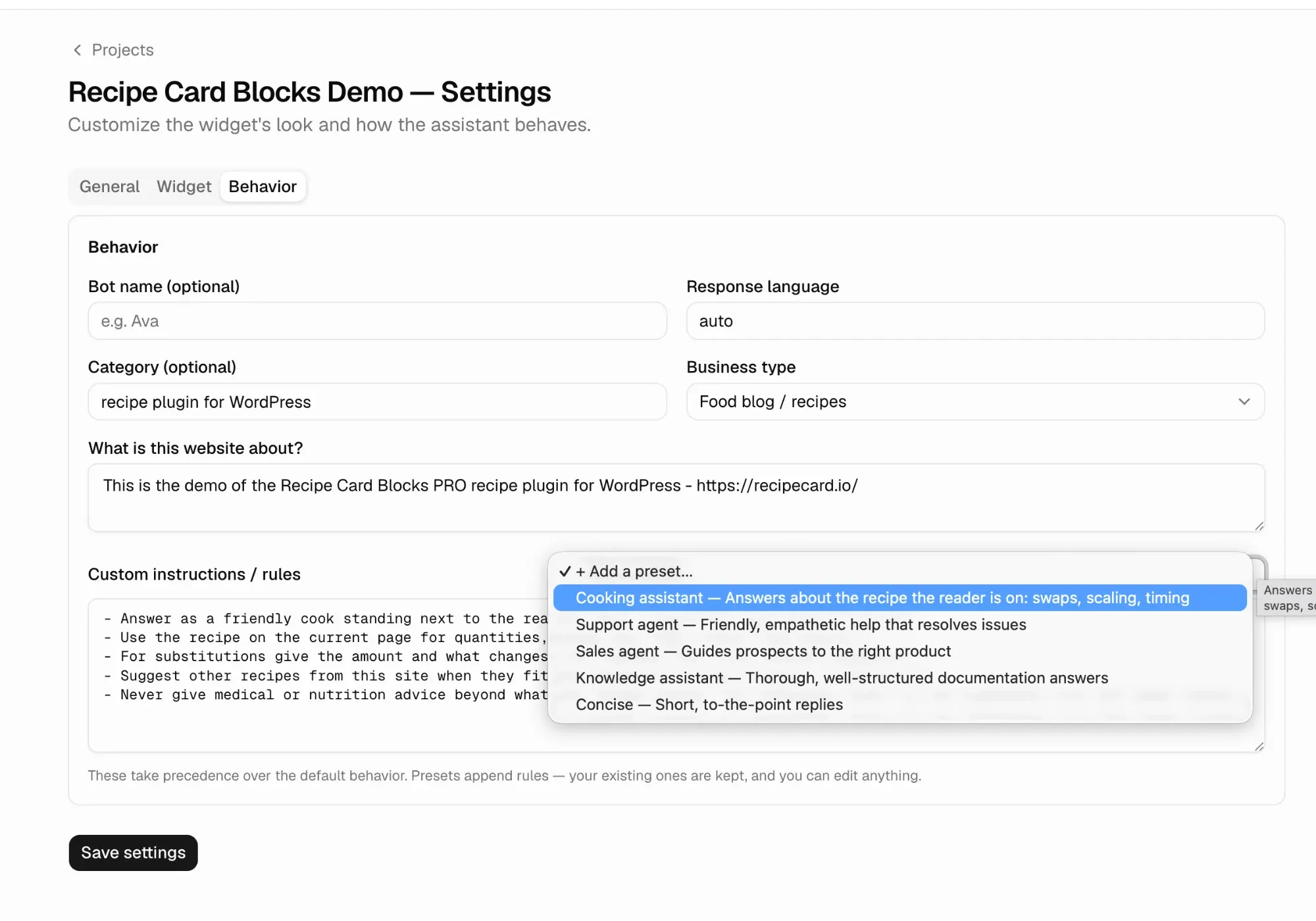
Set the business type. In the dashboard, open your project → Settings → Behavior and set Business type to Food blog / recipes. This turns on the cooking rules below.
-
Add the Cooking assistant preset. On the same tab, under Custom instructions / rules, open the + Add a preset… menu and choose Cooking assistant. Its rules are appended to your instructions, so you can edit them afterwards or add your own.
-
Save settings, then open any recipe on your site and ask a question.
What the Food blog type does
Section titled “What the Food blog type does”Choosing Food blog / recipes as the business type tells the assistant it is a cooking helper, and adds these rules on top of the normal ones:
- Recipe first, then your site. When a recipe is on the page, quantities, steps, times, temperatures, servings and nutrition are taken from it and quoted exactly. Next come your other recipes and posts.
- General cooking knowledge as a backup. When neither covers a cooking question, like an air fryer method, a wine pairing or how long leftovers keep, the assistant still answers. It gives concrete times and temperatures and adds one short note that the answer isn’t from the recipe and hasn’t been tested by you. It never presents general advice as part of your recipe.
- A built-in cooking reference. Conversions, cups to grams by ingredient, gas marks, safe internal temperatures, storage times and common substitution ratios come from a standard reference, so the numbers are the same every time.
- Substitutions with amounts. Swaps come with a quantity and what changes in taste or texture, and say when a swap is untested for this recipe.
- Scaling. Every ingredient is recomputed from the recipe’s yield, with a note when times, batches or pan sizes should change.
- Food safety. Advice always follows safe internal temperatures and storage rules.
- Dietary questions. A clear yes or no from the listed ingredients and the recipe’s nutrition, with a reminder to check labels. No medical advice.
- Other dishes. Asked about a dish that isn’t on the page, the assistant links your recipe for it when you have one. Otherwise it gives a short general method and says it isn’t one of your recipes.
- Short answers. A cook has one hand free: the answer first, then a line or two of why.
The Cooking assistant preset adds a friendly, practical tone and lets the assistant suggest other recipes from your site when they fit (a side, a sauce, a variation).
Recommended settings
Section titled “Recommended settings”| Where | Setting | Recommendation |
|---|---|---|
| Behavior | Response language | auto — readers get answers in their own language, whatever language the recipe is in. |
| Behavior | Bot name | Optional. A name that fits your blog, e.g. your kitchen’s name. |
| Behavior | What is this website about? | One or two sentences about your cooking style and cuisine. It helps with general questions. |
| Widget | Title | Something like “Ask about this recipe”. |
| Widget | Suggested questions | Questions readers actually ask, e.g. “Can I make this ahead?”, “How do I make this gluten-free?”, “Can I freeze it?” |
| Widget | Human handoff | On, so readers can reach you for anything the recipe does not cover. |
| Widget | Widget language | Match your blog’s language (Starter and up). |
“Ask about this recipe” button
Section titled ““Ask about this recipe” button”If you use Recipe Card Blocks, our recipe plugin, it can add an Ask about this recipe button to every recipe card, just above the ingredients. It opens the chat with that recipe already in context and puts “I have a question about the … recipe.” in the message box, so the reader only types the rest of the question.
Turn it on in Recipe Cards → Settings → AI Assistant. The same tab can install and activate the Yamidoo plugin for you in one click. The button stays hidden until the widget has loaded, so it never shows on a site without it.
On other recipe plugins, any link or button can do the same with the no-code
trigger. data-yamidoo-mode="prefill" puts the text in the message box; leave
it out to send the text straight away.
<a href="#" data-yamidoo="ask" data-yamidoo-mode="prefill" data-yamidoo-text="I have a question about this recipe."> Ask about this recipe</a>Test it
Section titled “Test it”Open a recipe on your site and try a few real questions:
- “How long per side?” or “What oven temperature?” — the answer should quote the recipe.
- “Can I halve this for two?” — every ingredient should be listed, scaled.
- “I have no buttermilk, what can I use?” — a swap with an amount.
You can also use Test your agent in the dashboard, but it does not know which page you are on, so recipe-specific questions work best on the live site.