

Widget & AI settings
A project’s Settings page controls both how the widget looks and how the assistant answers. Changes apply to the live widget without touching your site’s code.
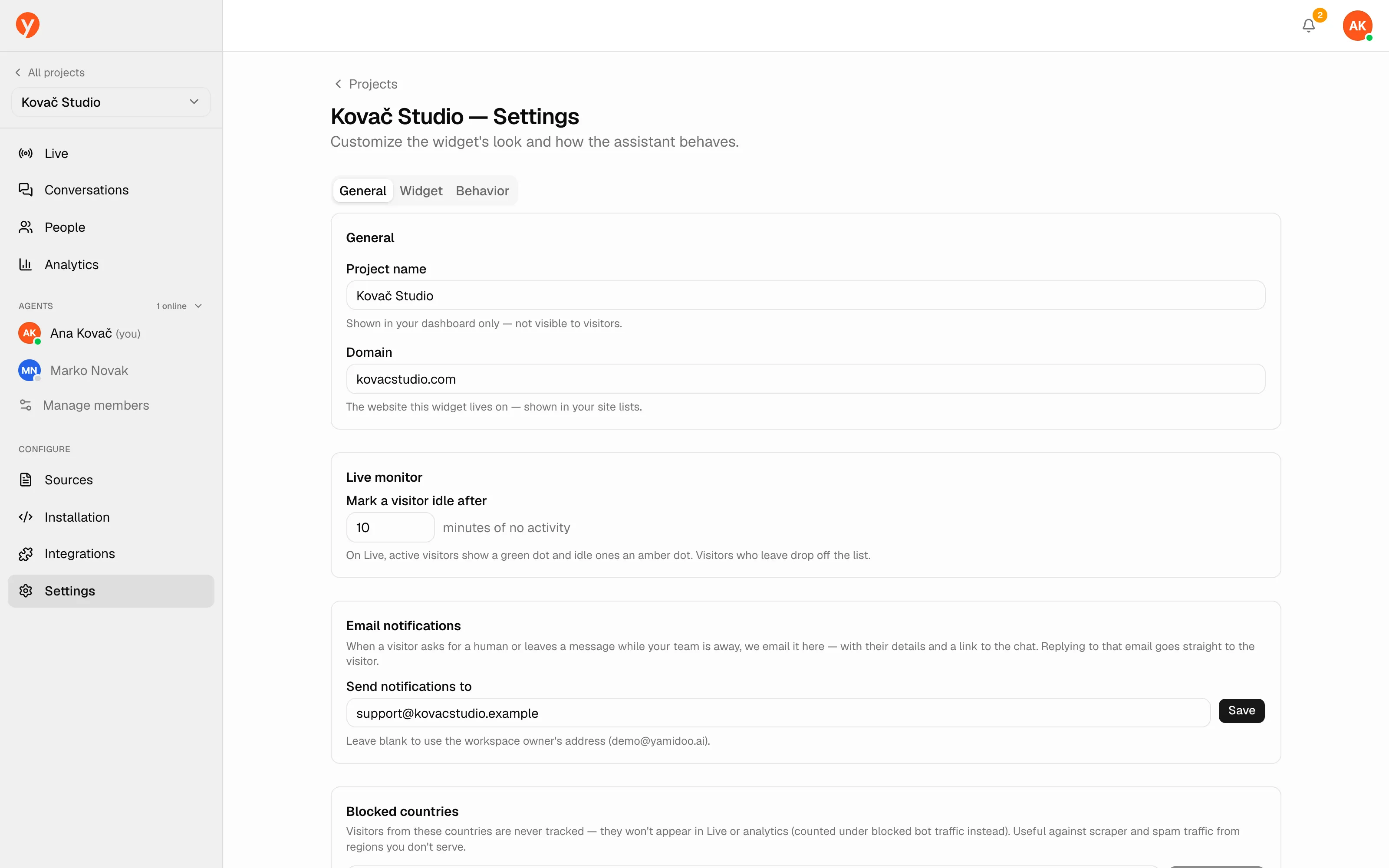
General
Section titled “General”- Project name and Domain — how the project is labeled in the dashboard and which site it belongs to.
- Email notifications — the address that receives handoff and leave-a-message emails. Defaults to the workspace owner.
- Blocked countries — countries where the widget won’t load. A visitor’s country comes from their IP address (IP Geolocation by DB-IP).
- Live monitor → Mark a visitor idle after — minutes of inactivity (default 10) before the Live view labels a visitor as idle. This only changes the label in the Live view; visitors never see a notice.
- Delete project — removes the project and its data.
Widget
Section titled “Widget”- Title — the widget’s panel header text.
- Color — your brand/accent color.
- Position — where the launcher sits.
- Welcome message — the first thing visitors see when they open the widget.
- Launcher button — the icon (13 options), an optional label, and whether to show the label.
- Avatar — your brand or agent image, shown in the header and beside human replies.
- AI avatar — the assistant’s glyph: orb, sparkle, bot, or twinkle.
- Suggested questions — starter questions visitors can click; add, remove, and reorder them. Three are shown per visit, in your order; with more than three, a random selection rotates.
- Floating messages — short bubbles shown near the launcher before the chat opens. A click either sends the text as the visitor’s message or puts it in the message box to edit (When clicked).
- Contact capture — collect name and email, and choose when to ask (before the first message, before talking to a human, or as an optional prompt).
- Satisfaction ratings — thumbs-up/down on each AI answer.
- Conversation rating — off, 5 stars, or 5 emojis at the end of a chat. Ask chooses when: after an agent closes the chat (default), or after every chat ends, including AI-only chats the visitor ends themselves.
- Ask “Did that answer your question?” — on by default. When a visitor goes quiet for two minutes after an AI answer, the widget offers Yes, thanks (ends the chat, then shows the rating if it’s on) and I still need help. Asked once per chat, never while a team member is in it.
- Close idle chats after — default 30 minutes without a message (0 = never). The chat is closed with a note to the visitor, which keeps Live and the inbox tidy. Chats waiting for your team’s reply are never closed automatically. The visitor sees “Your chat has ended” with a Start a new chat button.
- Email transcript — let visitors email themselves the conversation.
- Hide “Powered by Yamidoo” — Pro plan.
These map to the options covered in Customizing the widget.
Human handoff
Section titled “Human handoff”- Allow human handoff — let visitors ask to talk to a human.
- Require agent online — only offer handoff when at least one teammate is available; otherwise the “Talk to a human” action is hidden. With this off, it’s relabeled Leave a message when nobody is online.
- AI handoff — let the assistant escalate on its own when it judges a person is needed. On by default.
AI behavior
Section titled “AI behavior”Shape how the assistant responds:
- Presets — ready-made instruction sets to start from: Support agent, Sales agent, Knowledge assistant, or Concise.
- Bot name — what the assistant calls itself.
- Response language — Auto replies in the visitor’s language, or pick a fixed language.
- Category — general, e-commerce, SaaS, blog, docs, or other. Grounds the model in what kind of site it’s answering for.
- What is this website about? — a short description (up to 2,000 characters) the assistant uses as context.
- System instructions — your own rules, e.g. “be concise” or “always link to the docs.”