

Replying to visitors
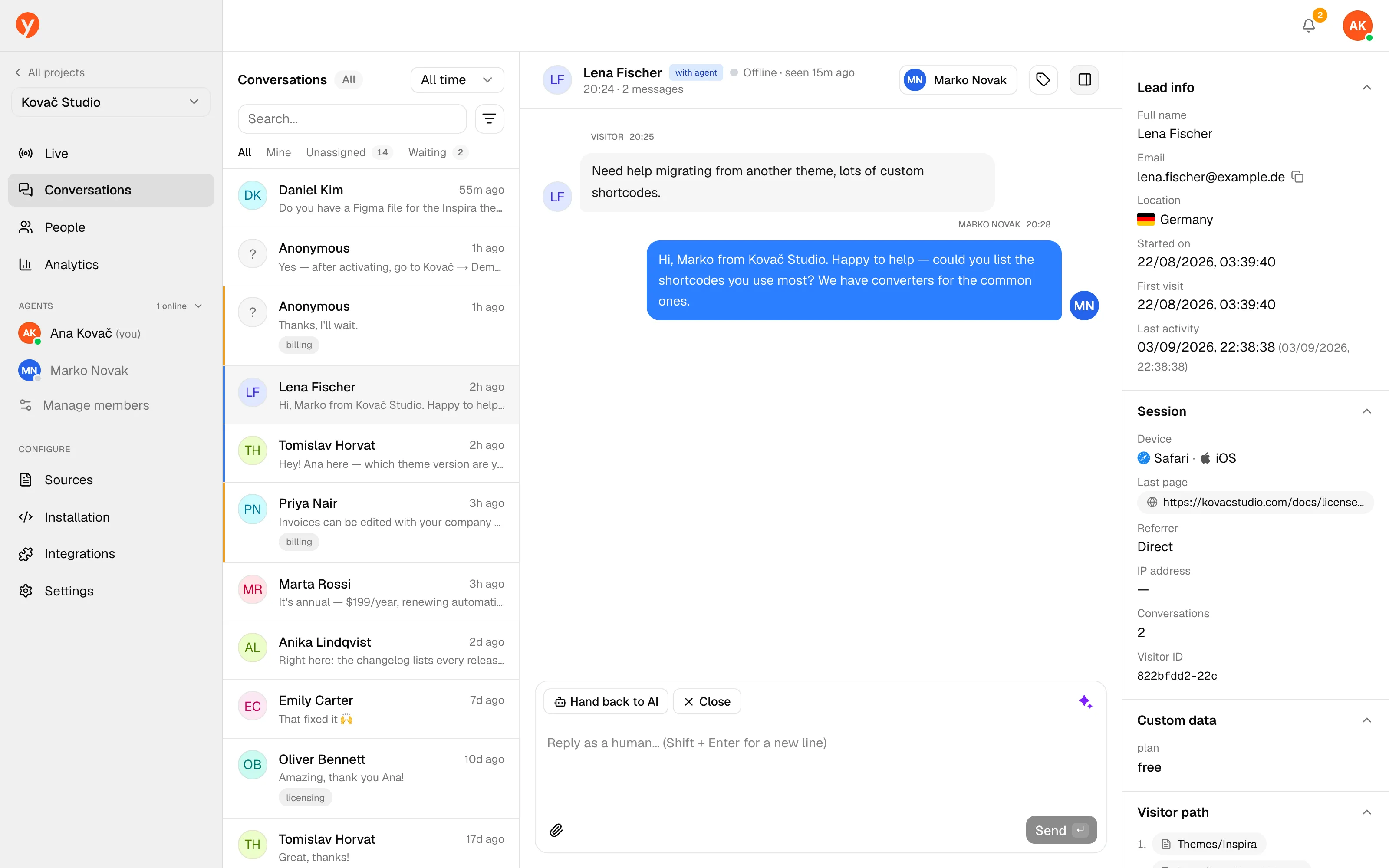
The Conversations inbox lists every chat for a project, newest first, with a status badge and the last message. Open one to see the full transcript and a reply box.
Taking over from the AI
Section titled “Taking over from the AI”While the assistant is handling a chat, you’ll see a Take over from AI button (or Take over (visitor requested a human) when the visitor has asked for a person). Clicking it:
- switches the conversation to With agent,
- posts a system note — “[You] joined the conversation” — so the visitor knows a human is here,
- stops the AI from replying while you’re handling it.
When you’re done, use Hand back to AI to return the chat to the assistant, or Close to end it. A closed chat can be reopened with Reopen conversation. Chats nobody writes in for a while close on their own; see Close idle chats after in Settings.
Replying
Section titled “Replying”Type in the composer and press Send (⌘/Ctrl + Enter). A few things to know:
- Ask for details requests the visitor’s name and email inline — handy when you’ll need to follow up.
- Attach a file — one per message: PDF, PNG, or JPG, up to 10 MB. You can also paste or drag-and-drop a file into the composer.
- Typing indicators run both ways, so the visitor sees when you’re writing.
Tag conversations from the inbox to sort and find them later — “refund”, “bug”, “sales lead”, whatever fits your team. Tags are managed on the project’s Tags page, where you create, rename, and remove them.
AI assist
Section titled “AI assist”The assistant can help you write, and nothing is sent until you review it:
-
Suggest a reply — with the composer empty, click the sparkle button and Yamidoo drafts an answer from your content and the conversation so far.
-
Rewrite with AI — with text already in the box, use the rewrite menu: Improve writing, Make friendlier, Fix grammar, or Make shorter.
-
Edit and send — tweak the draft as needed, then Send. Use Undo to discard the AI’s version and restore what you had typed.
Next steps
Section titled “Next steps”- Human handoff — how handoff works from the visitor’s side.
- Analytics — track handoff rate and satisfaction.