

Knowledge base
The Sources page is where you manage what your assistant can answer from. Sources are fetched, indexed, and kept in the background — you add them once and Yamidoo does the rest. For the concepts behind this, see Answering from your content.
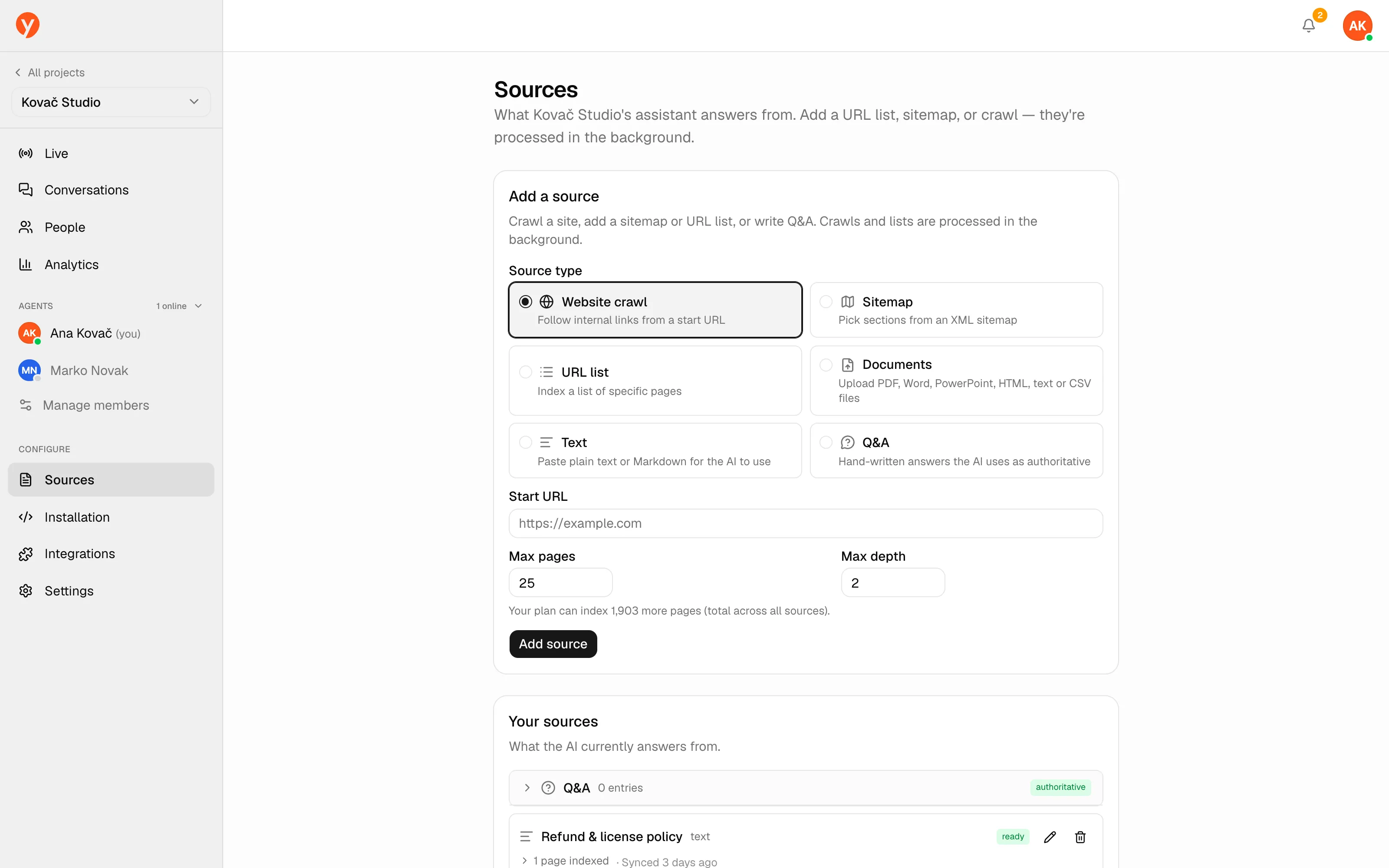
Adding a source
Section titled “Adding a source”Open a project and go to Sources → Add a source, then pick a type:
| Type | What it does |
|---|---|
| Sitemap | Scans an XML sitemap so you can pick which sections to include. Recommended for whole sites. |
| Website crawl | Follows internal links from a start URL. Depth 1–5 (default 2); max pages default 25, within your plan’s page budget. |
| URL list | Indexes specific pages, one per line — one or many. |
| Q&A | Hand-written question/answer pairs the assistant treats as authoritative. |
| Text | Paste plain text or Markdown for the assistant to use. |
| Documents | Upload files: PDF, DOCX, PPTX, HTML, TXT, Markdown, CSV, TSV. Up to 20 files, 20 MB each. |
When starting a crawl, use Check for sitemap — if one is found, you can switch to indexing it directly for cleaner coverage.
Page budget
Section titled “Page budget”Indexed pages count against one org-wide pool shared by all your projects: Free 100, Starter 500, Plus 2,000, Pro 5,000 pages. On the Free plan you can add one source of each type per project.
Watching sources index
Section titled “Watching sources index”Each source in Your sources shows a status:
| Status | Meaning |
|---|---|
| Ready | Indexed and answering. |
| Processing | Currently indexing. |
| Pending | Queued, waiting to start. |
| Error | Something failed — the message explains what. |
You’ll also see how many pages/documents were indexed and when it last synced. Expand a source to see the individual pages it pulled in. Use Refresh to re-index on demand at any time. Auto-refresh depends on your plan: never on Free, monthly on Starter, weekly on Plus, daily on Pro. Q&A pairs are edited together in one place and take effect on save.
Test your agent
Section titled “Test your agent”Below your sources, Test your agent lets you chat with the assistant exactly as a visitor would. Test conversations aren’t saved and don’t count toward your plan — a safe way to check answers after adding or editing sources.