

Customer data
Yamidoo can pull what your store knows about a visitor — orders, licenses, subscriptions — into the conversation. Your team sees it in the inbox next to the messages. If you choose to, the AI can also use it to answer questions like “when does my license expire?” for customers who are logged in to your site — a separate switch, off by default.
Nothing is copied into Yamidoo, and nobody outside your workspace can request it. When a conversation is opened or the AI needs it, your workspace asks your site for that one email address’s record over a request signed with your secret, shows it, and discards it.
WordPress stores
Section titled “WordPress stores”Easy Digital Downloads (with Software Licensing and Recurring) and WooCommerce (with Subscriptions) are supported out of the box by the WordPress plugin. Each has its own page with the exact fields: WooCommerce and Easy Digital Downloads.
If you connected with the Connect to Yamidoo button, the endpoint and secret are already in place — just make sure Show customer data in my Yamidoo inbox is ticked in wp-admin. If you pasted a Site ID by hand:
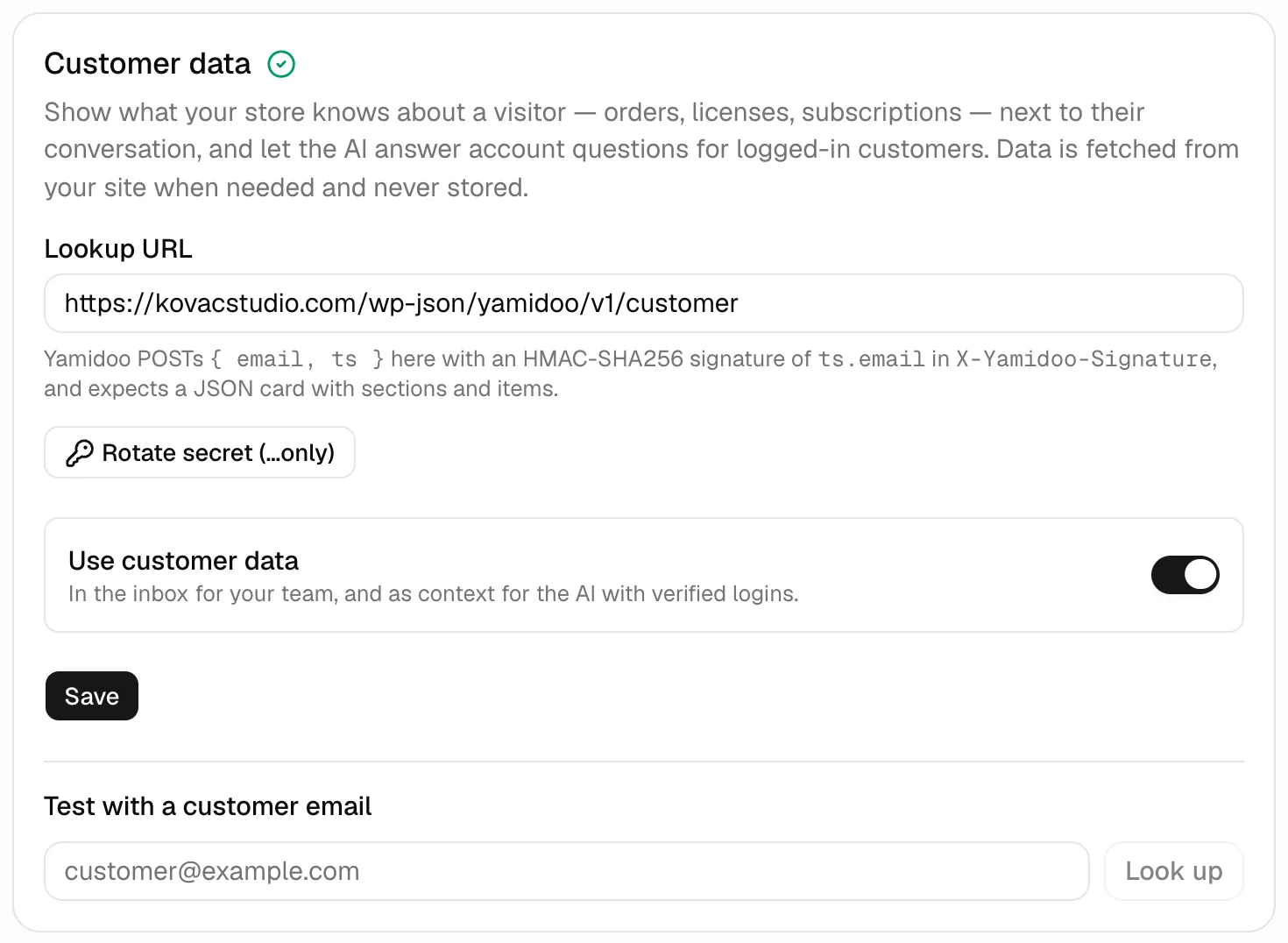
- In the dashboard open your project → Integrations → Customer data.
- Set the Lookup URL to the address shown under Settings → Yamidoo →
Customer data in wp-admin — usually
https://your-site.com/wp-json/yamidoo/v1/customer. - Click Generate secret, copy it, and paste it into the Lookup secret field in wp-admin. Tick Show customer data in my Yamidoo inbox and save.
- Back in the dashboard, use Test with a customer email to confirm the card comes back.
Freemius
Section titled “Freemius”Selling through Freemius? The data lives in Freemius, not on your site, so this one is set up in the dashboard alone. The Freemius page has screenshots and the exact fields; in short:
- In the Freemius Developer Dashboard open the product, then Settings → API & Keys, and copy the Product ID and the API bearer token.
- In Yamidoo open your project → Integrations → Customer data, paste both under Freemius and click Add product. Repeat for each product.
Yamidoo checks the token against the product right away, stores it encrypted, and from then on looks the visitor’s email up in Freemius when a conversation is opened: customer, licenses with expiry and activations, payments and refunds, subscriptions with renewal dates, and the sites the product is activated on. A product can be removed from the same list at any time; nothing is kept in Yamidoo afterwards.
What your team sees
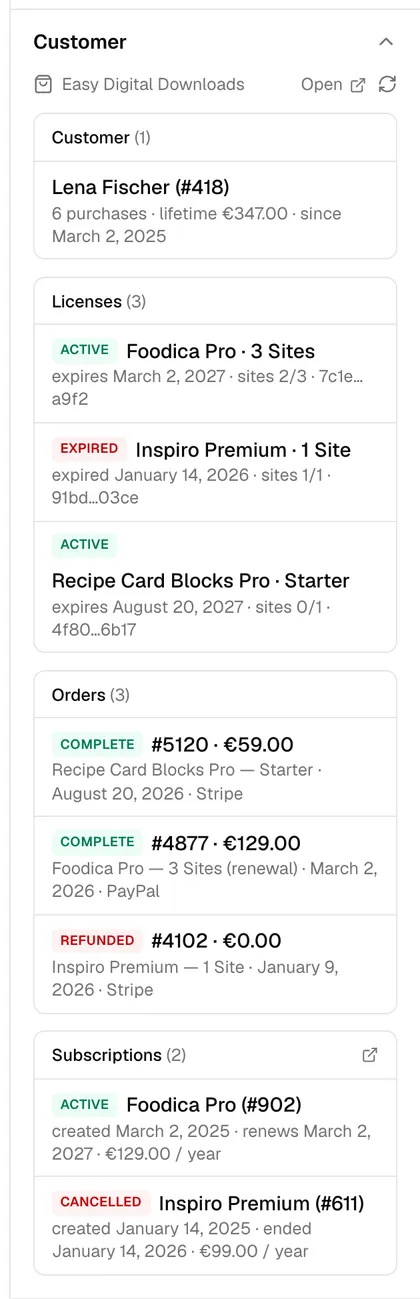
Section titled “What your team sees”Open a conversation with a visitor whose email is known and the Customer panel appears in the sidebar, titled after the store it came from:
- Customer — name, purchase count, lifetime value, customer since.
- Licenses — product, status, expiry, activations used, key.
- Orders — number, total, products, date, gateway. Collapsed when long.
- Subscriptions — product, status, renewal date, amount.
Each row links to the matching screen in your store’s admin. Agents can look up any email; the panel refreshes on demand and caches for five minutes.
What the AI can use
Section titled “What the AI can use”Nothing, until you say so. The Customer data tab has two switches:
- Show in the inbox — your team sees the record. On by default once the connector is set up.
- Let the AI answer account questions — off by default. Turn it on and the AI reads the record too, but only for visitors your site has vouched for: the plugin signs the logged-in user’s email with your secret when it identifies them, so a visitor cannot type someone else’s address and ask about their orders. Anonymous visitors, and visitors who typed an email into a contact form, keep getting normal answers from your content without account data.
The AI never sees the panel your team uses; it gets a plain-text summary of the same record, and only for the conversation it is answering.
Any other platform
Section titled “Any other platform”The connector is a small JSON contract, so a Shopify app or a Laravel backend can implement it in an afternoon. Set the Lookup URL and generate a secret in Integrations → Customer data, then serve the endpoint.
Request. Yamidoo sends a POST with a JSON body and two headers:
POST /api/yamidoo/customerContent-Type: application/jsonX-Yamidoo-Timestamp: 1757950000X-Yamidoo-Signature: sha256=<hex HMAC-SHA256(secret, "1757950000.jane@example.com")>
{ "email": "jane@example.com", "ts": 1757950000 }
Verify the signature over ts.email (email lowercased) and reject timestamps
older than a few minutes. Answer within 5 seconds.
Response. A card with sections; return { "sections": [] } for an unknown
email.
{ "source": "My Store", "url": "https://admin.example.com/customers/42", "sections": [ { "title": "Orders", "collapsed": true, "url": "https://admin.example.com/customers/42/orders", "items": [ { "value": "#3100 · $49.00", "badge": "complete", "tone": "success", "meta": "Pro plan · Sep 1, 2026 · Stripe", "url": "https://admin.example.com/orders/3100" } ] } ]}| Field | Notes |
|---|---|
source |
Shown as the panel title. Optional. |
url |
Link to the customer in your admin. Optional. |
sections[].title |
Section heading. Up to 12 sections. |
sections[].collapsed |
Start collapsed. Optional. |
items[].value |
The main text. Required. |
items[].label |
Small caption above the value. Optional. |
items[].badge, items[].tone |
Status pill and its color: success, warning, danger, neutral. Optional. |
items[].meta |
Secondary line. Optional. |
items[].url |
Opens in a new tab. Optional. |
Signed identify. To let the AI use the record for a logged-in user, add
signature to the identify() call:
the hex HMAC-SHA256 of the lowercased email with the same secret, computed on
your server.
yamidoo('identify', { name: 'Jane Doe', email: 'jane@example.com', signature: '<hex HMAC-SHA256(secret, "jane@example.com")>',});